How to delete a comment on Facebook: step-by-step guide

Delete removes a comment permanently. Hide keeps it visible to the commenter and their friends but hidden from everyone else, and they are not notified. On your own post or Page, click the three dots next to the comment and choose Hide comment or Delete.
For anything with ad spend behind it, hiding is usually smarter: it removes the damage without provoking the commenter.
Every day, comments pile up under Facebook posts and ads: real questions, spam, competitor jabs, and the occasional troll. Knowing how to clean them up quickly, without starting a fight, protects your reputation and your sales. Here is exactly how to do it on desktop and mobile, plus the difference between hiding and deleting that most people get wrong.
Hide vs delete: which should you use?
This is the most important choice, and it is not obvious. Here is the difference:
| Hide | Delete | |
|---|---|---|
| Who still sees it | The commenter and their friends only | No one, it is gone |
| Is it reversible? | Yes, you can unhide anytime | No, permanent |
| Are they notified? | No | No, but they can notice it is missing |
| Best for | Spam, trolls, negativity under ads | Your own mistakes, clear rule-breaking |
Rule of thumb: Hide first. Hiding neutralizes a bad comment without giving the person a reason to come back angrier, which matters most when real ad budget is on the line.
Delete or hide a comment on your own post (desktop)
- Open the post and find the comment you want to remove.
- Hover over the comment and click the three dots that appear to its right.
- Choose Hide comment to make it invisible to the public, or Delete to remove it permanently.
- If you hid it, a small Unhide option stays available from the same menu in case you change your mind.
Delete or hide a comment in the mobile app (iPhone and Android)
- Open the Facebook app and go to the post.
- Press and hold the comment (or tap the small menu next to it).
- Tap Hide comment or Delete from the menu that appears.
- To reverse a hide, press and hold the comment again and choose Unhide.
Delete a comment you posted on someone else’s post
You can always remove your own comment, anywhere. Click the three dots next to your comment and choose Delete. You cannot delete other people’s comments on posts you do not control. There you can only delete your own and report the rest.
Moderating comments on your Facebook Page
Page comments work the same way, but you have more tools. From Meta Business Suite, open Inbox or Comments to hide, delete, reply, or mark comments as spam in one place. You can also turn on a profanity filter and add a keyword blocklist in your Page settings so matching comments are auto-hidden before anyone sees them.
Comments under your Facebook ads
Ad comments are where this really matters. Comments on an ad live on the post behind it, so you moderate them from the post, from Ads Manager (open the ad and view its comments), or from Meta Business Suite. The same hide and delete options apply. Because ads run 24/7 and reach cold audiences, the comment section under an ad attracts far more spam and skepticism than an organic post, and every hour it sits unmoderated is an hour of buyers seeing it.
Heads up: If your ad uses an unpublished or “dark” post, you will not find it on your Page timeline. Moderate those comments through Ads Manager or Business Suite instead.
Auto-hide spam before it appears
To stop the obvious junk automatically, add a keyword blocklist and enable the profanity filter in Meta Business Suite. Any comment containing a blocked word gets hidden on sight. It helps, but keyword filters have a real limit: they only catch the exact words you listed. They miss “clik here,” misspelled scams, and coded insults, and they sometimes bury a real buyer who happened to use a flagged word.
Running ads? Hiding comments one by one doesn’t scale.
Deleting and hiding works fine for a post or two. But the moment you put spend behind an ad, comments arrive around the clock, faster than any person can watch. Competitor spam, scam links, and “is this a scam?” sit under creative you paid for and freeze warm buyers before they ever click.
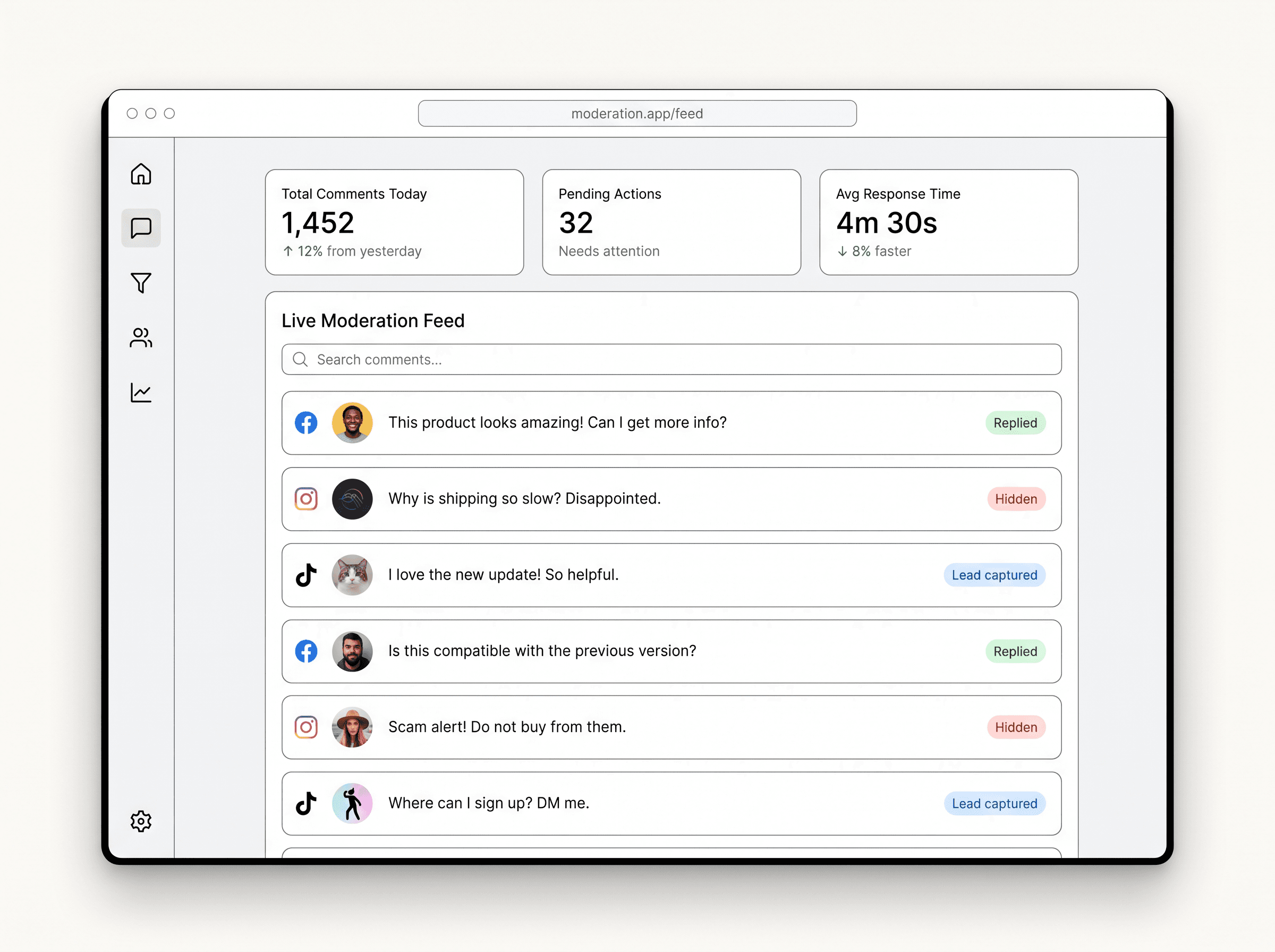
Exerta is an AI agent that moderates your Facebook, Instagram, and TikTok comments in real time. It reads intent, not just keywords, hides the toxic stuff the moment it lands, replies to real buyer questions in your brand voice, and turns comments into leads. 24/7, across every ad you run.
- Auto-hides spam, scam links, and toxicity. Every action logged and reversible.
- Answers “how much?” and “where’s my order?” instantly, in your voice.
- We set it up for you. Live in minutes. 90-day revenue-lift guarantee.
No credit card. Rated Excellent on Trustpilot.
Frequently asked questions
If you delete a comment, the person can notice it is gone if they look for it, and they may re-comment. If you hide it, they and their friends still see it as normal, but no one else does, and they are not notified. That is why hiding is usually the safer move under ads and busy Pages.
Stop moderating ad comments by hand.
Let Exerta hide the spam, answer the buyers, and protect every ad you run, automatically.