Shopify User Accounts the Complete Reference Guide
16 min read
read
·
A founder adds a media buyer, a support lead, an agency operator, and a finance reviewer, then the invite flow stalls, permissions get messy, and someone starts sharing logins because the plan ran out of seats. On the storefront side, buyers expect to check orders, reorder, and return without friction, but a half-finished account setup can turn that simple path into support work.
That's why Shopify user accounts are an operations topic, not a settings toggle. The questions are blunt ones, how many internal seats does the plan allow, which permissions are safe for each role, and what breaks when customer accounts move from legacy to the new framework. The fastest way to avoid rework is to treat staff access and customer identity as two different systems, then configure each one with the least privilege that still lets the team do the job.
Table of Contents
Why Shopify User Accounts Become an Ops Problem Fast
A growing brand usually hits the wall in the same way. Two people inside the store becomes five, then the agency wants access, then the freelancer needs to update products, and suddenly the admin is holding both customer identity and internal access problems at once. That's when Shopify user accounts stop being a background setting and start deciding who can work, who can't, and what gets exposed.
The first break point is usually access, not strategy
The issue isn't that teams lack tools. It's that they add people before they define the function. A founder hands out broad access to get work moving, then a support rep can see too much, an analyst can't see enough, and a contractor ends up with the same access as a full-time operator.
Practical rule: if you can't name the function first, you're not ready to invite the user yet.
This guide works like a reference, not a tour. If the immediate problem is internal access, jump to the staff sections. If the problem is buyer login, customer account setup, or migration risk, use the customer sections. If the business is already at seat pressure, the plan cap section is the one to read first.
The outcome should be simple. You should know which account model you're configuring, how many seats your plan allows, and which permission scope creates the least risk for each role.
Staff Accounts vs Customer Accounts at a Glance
The fastest way to avoid mistakes is to separate the two account types in your head before touching the admin. Staff accounts are for the people who run the store behind the scenes. Customer accounts are for shoppers on the storefront, the people who need to track orders, manage profiles, reorder, or start returns.
Who uses each one
Staff accounts live in the Shopify admin. They're controlled by the merchant, limited by plan tier, and scoped by permission. Customer accounts live on the storefront experience, and Shopify's newer version is passwordless and self-service, which matters because it changes what buyers see when they sign in.
The practical mistake is mixing them together. A media buyer does not need a customer login, and a repeat buyer should never be treated like an admin user. One account is for operating the business, the other is for buying from it.
Dimension | Staff Accounts | Customer Accounts |
|---|---|---|
Purpose | Internal store operations | Shopper sign-in and self-service |
Where they live | Shopify admin | Storefront customer experience |
Who controls access | Merchant or admin team | Merchant configures the experience, customer uses it |
Typical actions | Manage orders, products, customers, apps, analytics, settings | View orders, edit profile, reorder, return items, manage subscription actions |
Common mistake | Giving too much access | Using the wrong login flow for buyers |
A clean example helps. A DTC brand adding a media buyer needs a staff account with the permissions that support campaign work. A repeat buyer checking a subscription needs a customer account on the storefront, not admin access. The two flows solve different problems, and they should stay separate.
Plan Tier Seat Caps and What They Block
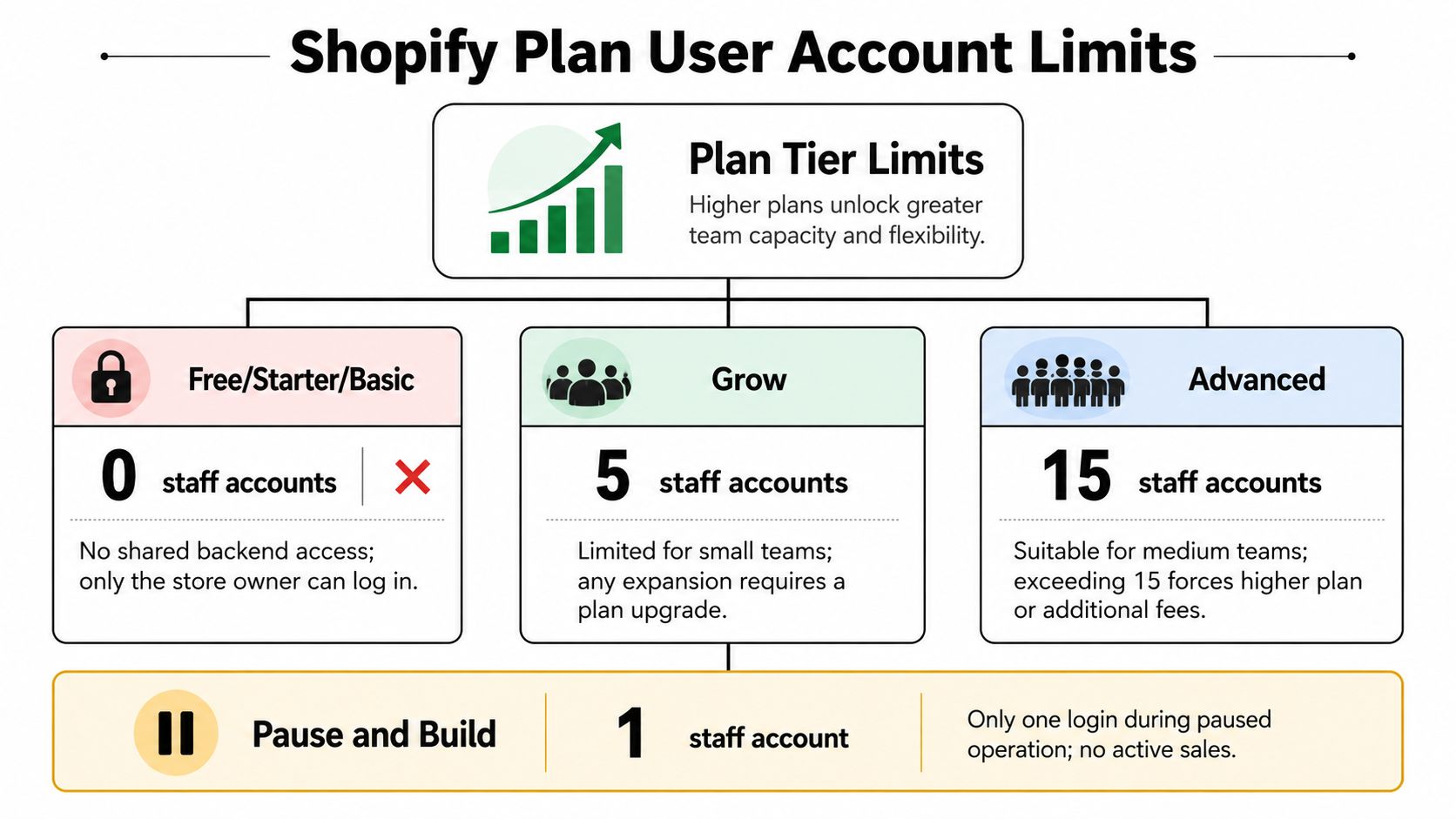
Shopify's staff limits are hard ceilings, not recommendations. The current help docs show Pause and Build = 1, Starter = 0, Basic = 0, Grow = 5, Advanced = 15, and Shopify Plus = unlimited. That means some plans do more than cap convenience, they decide whether shared backend access is available at all.
What each cap means in practice
On Starter and Basic, the single-login reality is the problem. If the store owner is the only person who can get into the backend, every extra task gets routed through one person or a full plan move. That is not a permissions issue anymore, it is an operating model issue.
Grow gives you five staff accounts. That is enough for a small core team, but it does not take much to use them up. Advanced gives you fifteen, which helps, but the number still matters because agencies, finance, support, and merchandising all want their own seats. Shopify Plus removes the cap, which is why larger teams usually think about role design differently.
A typical failure looks like this. A brand on Grow tries to add a sixth staff member, maybe the founder, a customer support rep, a content lead, a finance reviewer, and an agency operator are already in. At that point the team has to consolidate roles or upgrade. Seat planning should happen after permission design, not before it.
Operational takeaway: when you hit a limit, the first question is not “what plan do we need,” it is “who needs a seat.”
Staff Permissions by Function and Least-Privilege Setup
Shopify's staff model works best when you assign access by job, not by personality. The admin exposes users as discrete staff identities, and the API reflects that model as a User resource, which is a strong signal that shared logins are the wrong habit. The right setup is to define what each person needs before the invite goes out.
Build roles around work, not titles
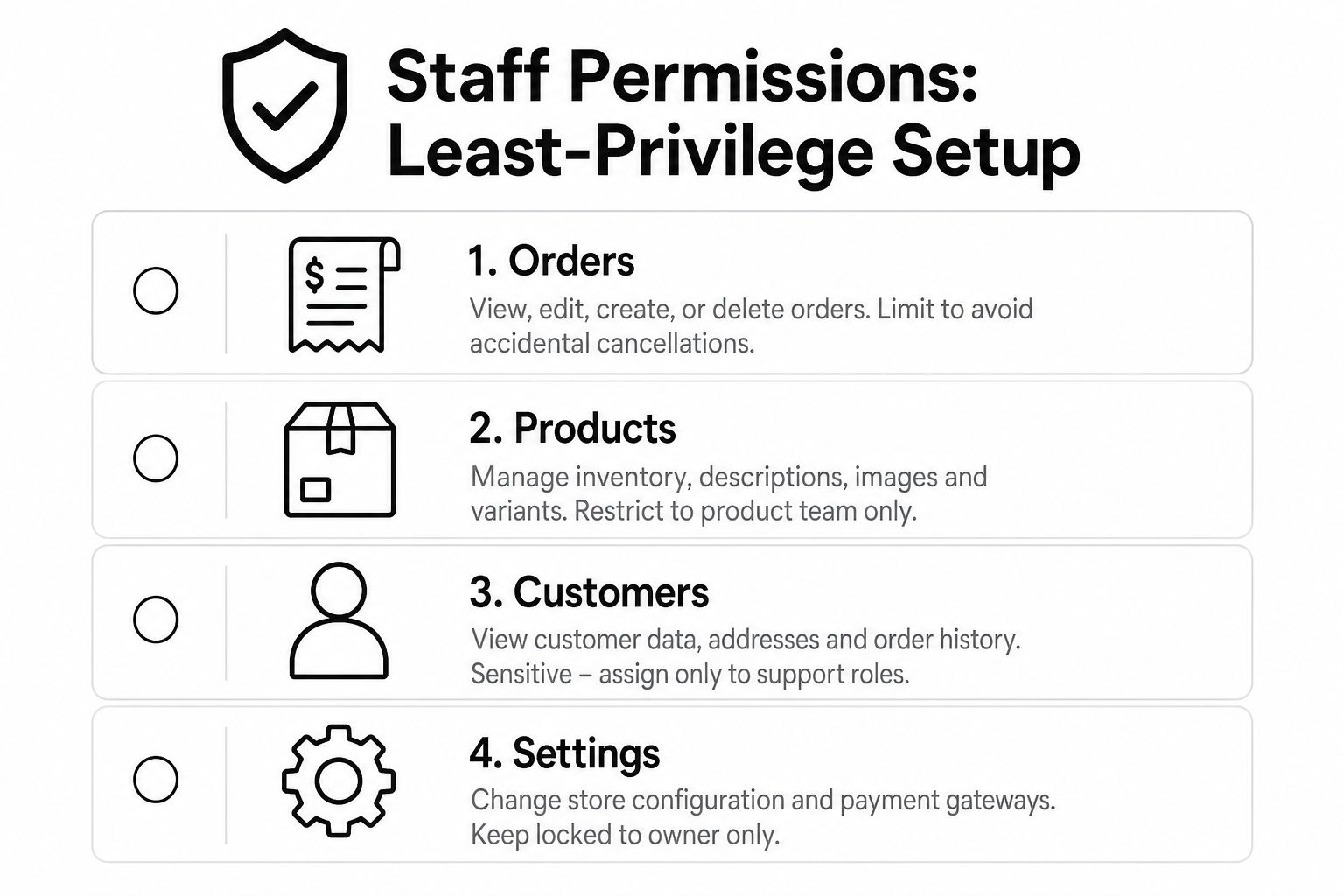
The permission categories that matter most are straightforward, orders, products, customers, analytics, and apps. Those are the buckets that usually create the most risk when they're too broad, because a person who only needs to update copy or check a workflow can accidentally touch financial or customer data.
There's also a store permission specifically for View and edit access to checkout and customer accounts settings, which matters more than people think. It lets a team member work on customer-account configuration without opening the entire admin. That's the right shape for an agency, a contractor, or an internal CX lead who handles account flow but doesn't need broad store control. For a tighter access model, keep the permission map documented in your security review, like the one you'd expect in a store access policy.
Give the CX lead customers and orders. Give a freelancer apps only if they're managing an integration or workflow. Keep analytics with the founder and one finance reviewer. Leave broad settings access locked down unless someone truly owns the store configuration.
The point is to predefine the function by area. A user who can view orders doesn't need product editing. A product operator doesn't need checkout settings. When the team is clear on those boundaries, invites become faster and audits get simpler.
How New Customer Accounts Work for Shoppers
New customer accounts are built for the buyer, not the back office. Shopify documents them as passwordless and self-service, so shoppers can sign in to view orders, edit profile details, track order status, initiate returns, reorder, and access subscription-related actions from one hub. That's useful because the account becomes part of the post-purchase experience instead of a dead-end login page.
What the shopper actually experiences
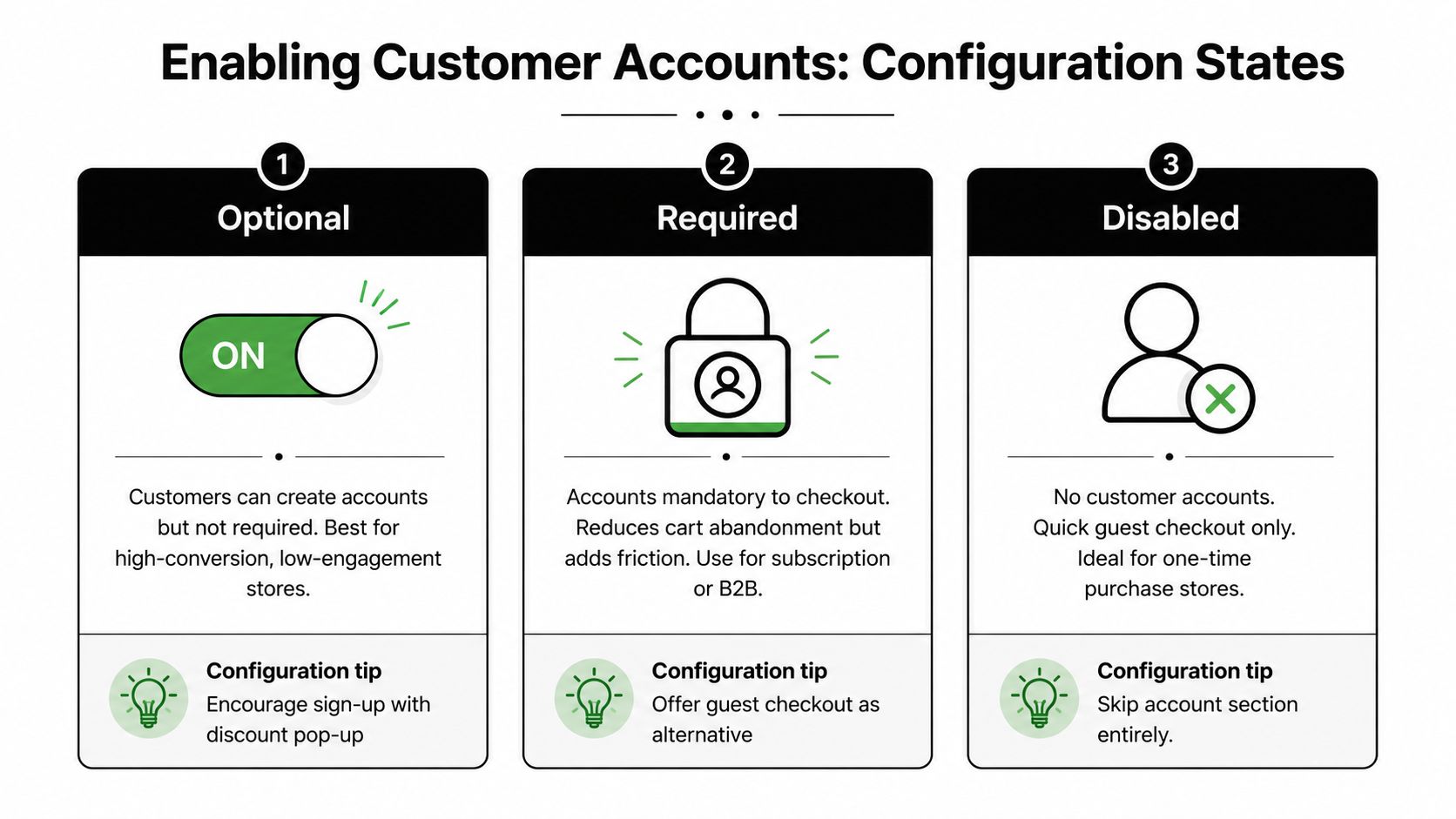
Merchants can set accounts to optional, required, or disabled, and that choice should match the buying model. The sign-in flow can also support social sign-in and Shop-recognition-based automatic sign-in through the account component. Those details matter because they shape whether a buyer feels recognized or stalled.
For enterprise identity work, the technical bar is modern. Shopify requires OAuth 2.0 authorization code flow, PKCE for public clients, OpenID Connect, RP-initiated logout, email as the unique identifier, refresh-token support, and specific endpoint coverage for authorization, token, JWKS, and discovery. It also limits ID-token signing to RSA, ECDSA, RSA-PSS, and EdDSA, and explicitly rejects HS256. Engineering teams that still think in legacy SAML-only terms will build the wrong thing.
If you want a deeper strategic view of account structure, SelfServe's strategic account guide is a useful companion read because it focuses on how account choice affects the customer journey, not just the setup steps.
Legacy vs New Customer Accounts and Migration Risk
The risk in customer accounts isn't switching them on. It's assuming the switch won't touch anything else. Legacy accounts rely on an older password-based flow, while the new framework is passwordless and centered on self-service actions. On paper that sounds cleaner. In practice, the dependency map decides whether the migration is boring or disruptive.
What usually breaks first
Themes, loyalty widgets, subscription flows, referral tools, and support workflows often assume the old structure. If those touchpoints expect a legacy login path, a clean visual change in the storefront can still produce broken access behind the scenes. That's why migration readiness matters more than account creation.
Independent setup guidance warns merchants to audit customer-facing dependencies, test the full journey beyond sign-in, and prepare customer-facing messaging before publishing changes. That advice lines up with what operators see in the field, because most issues show up after the login screen, not on it. Legacy accounts are expected to go away eventually, but without a clear public timeline, compatibility planning stays live.
Before you flip anything, review what depends on customer identity, not just what depends on the login page. The safer move is to treat the migration like a rollout, with a rollback path, customer messaging, and a test pass across every connected flow. If you're reviewing the legal side of that handoff, this data processing reference is the right place to align the internal review before customer data changes.
Enabling and Configuring Customer Accounts
The cleanest setup starts with the store model, not the toggle. A first-time-buyer-heavy catalog usually fits optional accounts because you don't want to add friction to a quick purchase. A subscription-heavy brand often needs required accounts because repeat access matters. A one-shot purchase store can keep disabled if guest checkout is the right fit.
A practical setup sequence
Start by choosing the account state, then enable the new customer account framework. After that, turn on social sign-in if it fits the audience, and test Shop-recognition auto sign-in if the flow is supposed to reduce repeat friction. The check is whether order viewing, returns, and reorder actions render correctly after login.
Do the first test from a clean browser, not from a session that already knows the user. That's where most account bugs show up. A logged-in path can hide broken redirects, stale identity matching, or a misconfigured profile flow that only appears on a first sign-in.
Configuration state | Best fit | Operational note |
|---|---|---|
Optional | High-conversion stores with mixed buyer intent | Encourage sign-up after purchase, not before |
Required | Subscription or B2B-style purchasing | Use when account continuity matters more than checkout speed |
Disabled | Pure one-time purchase stores | Skip account UI entirely and keep the path short |
Before publishing, line up the on-site copy and post-purchase email language with the new flow. If buyers see one thing in checkout and another in email, support tickets follow fast. For implementation details tied to the broader store stack, keep the setup aligned with your Shopify integration reference.
Login Friction as a Revenue Problem
A buyer who has already ordered once should not have to fight the account system to come back and buy again. Yet that is exactly what happens when login recovery is clumsy, automatic account creation is unclear, or the store leaves shoppers guessing about whether an email address already exists in the system. Those failures look like support work on the surface, but they reroute repeat demand away from owned traffic and into paid re-acquisition or a fresh checkout path.
The failure often happens after the password reset
The broken moment is often the reset itself. A repeat buyer who cannot get back in after changing a password usually does not keep testing the flow. They abandon the reorder path, contact support, or start over with a new purchase, and the store pays acquisition cost again for a customer it already had.
Shopify's customer-friction direction is built around reducing blockers across the full journey, not only at the top of the funnel. That matters because login is part of revenue ops, not just account hygiene. If the sign-in path breaks, the account system adds service burden and pushes repeat revenue back into expensive channels. The same problem shows up when identity rules are unclear. If a shopper expects the store to block a new account when the email already exists, and the behavior does not match that expectation, the result is duplicate records, more support tickets, and messy post-purchase messaging.
For stores comparing account design choices, our guide to omnichannel customer engagement is useful because login does not sit on its own. It has to fit the way buyers move between email, checkout, order history, returns, and reorder actions. The practical question is not whether the login form submits. It is whether the buyer can finish the post-login task without asking for help. That is what protects margin, because the best customer account setup is the one customers barely notice after authentication.
Designing Access Before Upgrading the Plan
The default reaction to a seat problem is to buy more plan capacity. That's often backwards. The better first move is to redesign access so each person gets the smallest permission scope that still lets them work. Many teams discover they don't need more seats, they need fewer broad privileges and more defined functions.
Rebuild the org chart before you change the plan
Start by collapsing redundant roles. A contractor doesn't need the same access as a permanent operator. A finance reviewer doesn't need product editing. A support lead probably doesn't need the same rights as the founder. Once the access map is tight, move contractors to scoped app-level access where possible and keep admin seats for the people who own the store.
That's especially important on plans with limited seats. If a brand on Advanced has fifteen seats, the team still doesn't need full edit rights for twenty people to function. Most team members need one or two tasks, not broad control across orders, products, customers, and apps. The seat count matters, but the permission structure usually matters more.
Rule of thumb: upgrade after the access model is clean, not before.
Use the plan cap reference as a constraint check, not a trigger for panic. If the team is already tight on access, a seat upgrade may be correct. But if the problem is that everyone has too much power, more seats just scales the mess.
Common Admin Troubleshooting and Fixes
Most Shopify access problems have ordinary causes. The challenge is that teams often reach for the wrong fix first. A password reset won't help if the invite never landed, and an upgrade won't help if the permission scope is wrong.
Fix the problem at the right layer
Staff can't log in: check the invitation email first, then verify the account was invited with the right permission scope. A login failure is often an invitation or scope issue, not a password issue.
Staff can see too much: collapse permissions by function, re-invite if needed, and remove broad access that isn't required for the role.
A customer is locked out after migration: send them through the new passwordless sign-in path and confirm the email matches the record used during migration.
Duplicate customer accounts show up after checkout typos: merge the records in the customer view and update the canonical email so the next order lands in the right profile.
Agencies should avoid shared logins entirely. Shopify exposes staff users as discrete identities, so one seat per client or per function gives you cleaner attribution and a usable audit trail. If something goes wrong later, you want to know who did what without guessing.
For a broader troubleshooting workflow, keep the team aligned with the support center so fixes don't turn into repeated access churn.
Quick Reference for Shopify User Account Decisions
A store usually reaches an access decision at the moment something breaks. A new contractor needs entry before launch, an internal operator needs the right scope without inheriting admin sprawl, or a customer rollout threatens login friction for active buyers. The right answer depends on three things, who needs access, which account type fits the job, and what changes if you switch it later.
Decision matrix
Decision | Best section to check | Key fact to use | First operational check |
|---|---|---|---|
Add a contractor | Staff permissions | Scope access by function, not title | Define the exact tasks they need before inviting them |
Add a new internal operator on a small plan | Plan tier seat caps | Plan limits can block new staff seats | Count current seats and remove unused access first |
Enable customer accounts | Enabling and configuring | Customer accounts can be optional, required, or disabled | Test the full post-login journey from a clean browser |
Move from legacy customer accounts | Migration risk | Dependencies can break during the switch | Audit themes, apps, and support flows before publishing |
Tighten admin security | Least-privilege setup | Use the store permission for customer accounts settings instead of broad access | Assign orders, products, customers, analytics, and apps by function |
Two rules hold across every decision. Design permissions before adding seats. Treat customer account changes as migration projects, not toggles. If you skip that sequence, you usually end up cleaning up access twice, once after the invite and again after the rollout.
For official verification, keep the following close by, the Shopify user management docs and the customer accounts help center.